Setup in 4 steps
About ten minutes, no technical skills needed. Each step has an illustration.
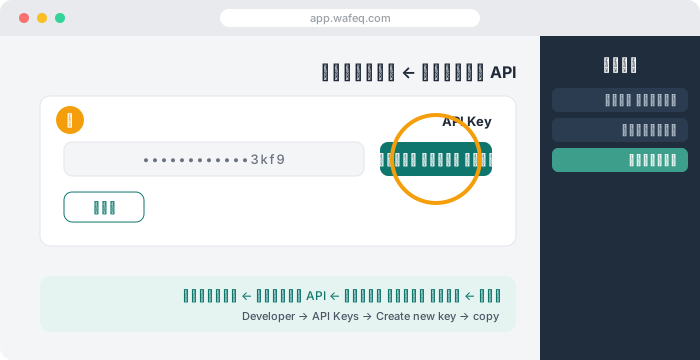
1 · Create your Wafeq API key
In Wafeq (app.wafeq.com): open Developer → API Keys in the left menu, click Create new key and copy it. If an Enable API button is shown, click it first.
Wafeq's API needs a paid Wafeq plan (Starter or higher) and also works during Wafeq's free trial. This key is the permission to read and write your books — share it with nobody; you will paste it only on our site.
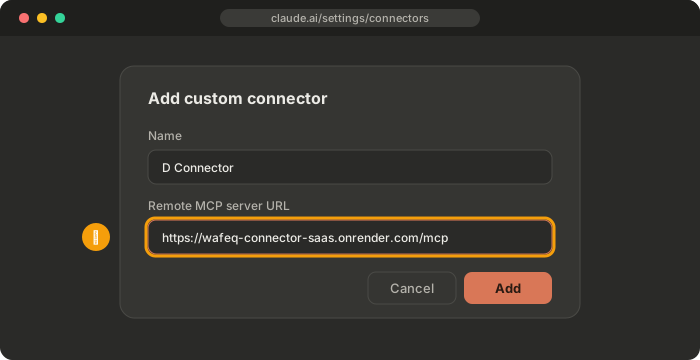
2 · Add the connector in your AI app
Copy this link:
https://wafeq-connector-saas.onrender.com/mcp
- Claude: Settings → Connectors → Add custom connector → paste the link → Add.
- ChatGPT: turn on Developer mode in settings, then add the link as an app.
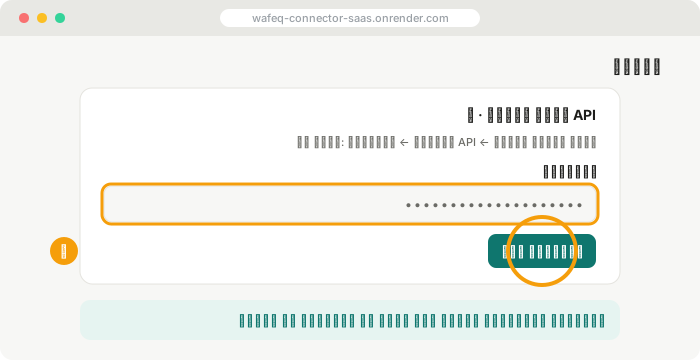
3 · Sign in and paste the key
Your AI app opens our page: continue with Google, paste the Wafeq key from step 1, and click Allow. We verify the key with Wafeq before saving it, and it is stored encrypted.
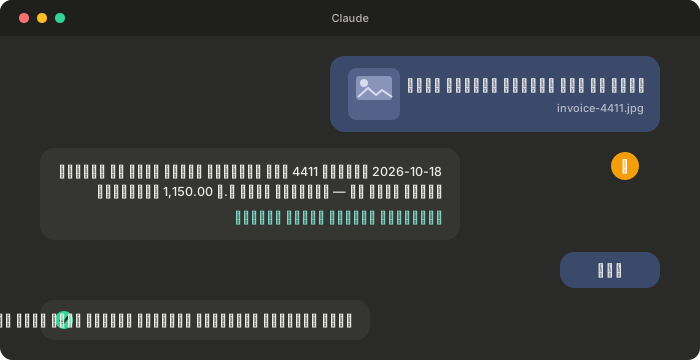
4 · Send your first invoice
In the chat, send the invoice photo and write, for example: "Enter this supplier bill in Wafeq". It shows you the summary first; after your yes it saves a draft your accountant reviews and finalizes in Wafeq.
More messages that just work
- "Create a sales invoice from this image".
- "Did we already record invoice 4411 from Al-Noor Co.?"
- "What is the total of this month's purchase bills?"
- "Add this new customer from the attached business card".
Menu names in AI apps can change. Your AI app may need a paid plan for custom connectors. Stuck? See the FAQ or write to sales@mea-is.com
Not affiliated with Wafeq. · Part of the Awsel family · Privacy · Terms · sales@mea-is.com